Convergence 2013 in 'Nawlins is fast approaching. Here's a preview of the sessions I'll be involved in or presenting . . .
This session will repeat at 4:00 PM on Thursday, March 21st.
This session will repeat at 5:30 PM on Thursday, March 21st.
Hope to see you all there!
February 16, 2013
December 31, 2012
Prevent Users from changing User Date
Some companies have a need to disable the ability to change the User Date in GP. Out of the box, there isn't a great way to handle this requirement but Ian Grieve, over at Azurecurve in the UK, has a simple, yet elegant solution for this. Check out Ian's blog post here - User Date.
Wishing everyone a Happy and Prosperous 2013!
December 18, 2012
Upgrading to GP 2013 in the near future? Read this first . . .
If you're planning a GP 2013 upgrade anytime soon, take a look at this excellent article at MSDynamicsWorld for some upgrade Tips n Tricks - GP 2013 Upgrade.
December 16, 2012
GP 2013 RTM (Release to Manufacturing) on December 19, 2012
Read David Musgrave's blog to learn more about the culmination of over 78,000 hours of development by the Microsoft Dynamics GP team - Dynamics GP 2013.
December 9, 2012
SmartList Divider Splitter Control
If you're like me and have been frustrated to no end over the years because you couldn't drag the divider in SmartList to allow more space in the results pane, our frustration is near its end. I test drove this Splitter Control by David Musgrave a few months ago before it was approved for release and it works like a charm. Fellow MVP Mariano Gomez elaborates on his blog - SmartList Splitter Control.
Go forth and enjoy and send a hearty thanks to Mr. Musgrave!
November 7, 2012
Transaction Prefixes in Cost Adjustment Batch
Wonder what the prefixes mean in Cost Adjustment batches? Well, wonder no more! The following is a list of the prefixes you would see
in the Reference field of a transaction in a cost adjustment (GLTRX) batch and
a description of why that prefix would be used. The Reference field can be
found in the Transaction Entry, Detail Inquiry, and Journal Entry Inquiry
windows.
a. BOM – This comes from a Bill of Materials transaction. For example if a BOM Assembly transaction consumed an item from inventory and the cost was later changed due to a POP purchase price variance (PPV) or an average cost ripple, you would see this reference.
b. INV – This comes from an Invoice transaction created from the Invoicing module. For example if an Invoice transaction (in Invoicing) consumed an item from inventory and the cost was later changed due to a Purchase Order Processing PPV or an average cost ripple you would see this reference.
c. IVT – This comes from an Inventory Transfer Transaction. For example if an item was consumed via the Item Transfer and the costs were later changed due to a PPV or an average cost ripple you would see this reference.
d. IVA – This comes from an Inventory Adjustment transaction. For example if a decrease Inventory Adjustment transaction consumed an item from inventory and the cost was later changed due to a PPV on an invoice match or an average cost ripple you would see this reference.
e. IVV – This comes from an Inventory Variance transaction. For example if a decrease Inventory Variance transaction consumed an item from inventory and the cost was later changed due to a PPV on an invoice match or an average cost ripple you would see this reference.
f. SALES – This comes from a Sales Order Processing Invoice transaction. For example if a Sales Invoice consumed an item from inventory and the cost was later changed due to a PPV on an invoice match or an average cost ripple you would see this reference.
g. PRTN – This comes from a Purchase Order Processing return transaction where doing the return changes the cost of the item.
h. MCTE – This comes from a Manufacturing Component Transaction. For example if an item was issued (consumed) in the Component Transaction Entry window and the cost was later changed due to a PPV or an average cost ripple you would see this reference.
i. MRCT – This comes from a Manufacturing Receipt Transaction. For example if an item was backflushed and consumed in the Manufacturing Receipt Entry window and the cost was later changed due to a PPV or an average cost ripple you would see this reference.
j. MCLS –This comes from Closing a Manufacturing order via the Close process or during a Quick MO (quick MOs are automatically closed). For example if a user closes an MO and there are items that are set to backflush (consumed) and the cost was later changed due to a PPV or an average cost ripple you would see this reference.
k. STCK – This comes from Item Stock Count Variance transaction. For example if a Stock count adjustment consumed an item from inventory and the cost was later changed due to a PPV or an average cost ripple, you would see this reference.
l. FSSC – This comes from selling a Part on a Service Call. For example, an Item was Received into Inventory at one cost and the cost was later changed due to an Invoice Match you would see this reference.
m. FSRMA – This comes from an RMA. For example, you have a quantity of an item at one cost. You create a Credit RMA and receive the item in. You then Scrap the item ( which removes the one already in your inventory ) and later the cost of that item changed due to an Invoice Match you would see this reference.
n. FSRTV – This comes from an RTV. For example, you create a Credit RTV. You Ship an item at one cost and the cost was later changed due to an Invoice Match you would see this reference.
o. FSWO – This comes from using a Part on a Depot Work Order. For example, you create a WO and Use an item from the Parts Information window at one cost and the cost was later changed due to an Invoice Match you would see this reference.
p. PA – This comes from a Project Accounting transaction. For example if a PA Inventory Transfer consumed an item from inventory and the cost was later changed due to a PPV on an invoice match or an average cost ripple, you would see this reference.
q. POP –- This comes from a Purchase Order Processing shipment receipt. For example if an item was consumed through an override in any module and later the shipment was brought in at a different cost than it was when it was consumed (overrode), you would see this reference
r. RECON – You would see this reference if the outflow being revalued was created by the Inventory Reconcile Utility. One reason IV Reconcile would need to create an outflow record is if there are not enough quantities in the IV10201 to support the quantity sold in the IV10200.
s. CONV – You would see this reference if the outflow being revalued was created by the upgrade. The upgrade from an older version of Microsoft Dynamics GP to 9, 10 or GP2010 may need to create an outflow if a receipt record was partially sold at the time of the conversion.
t. PRCT- You would see this reference if the item was overridden on an In-Transit Transfer transaction and then later brought in at a different cost.
a. BOM – This comes from a Bill of Materials transaction. For example if a BOM Assembly transaction consumed an item from inventory and the cost was later changed due to a POP purchase price variance (PPV) or an average cost ripple, you would see this reference.
b. INV – This comes from an Invoice transaction created from the Invoicing module. For example if an Invoice transaction (in Invoicing) consumed an item from inventory and the cost was later changed due to a Purchase Order Processing PPV or an average cost ripple you would see this reference.
c. IVT – This comes from an Inventory Transfer Transaction. For example if an item was consumed via the Item Transfer and the costs were later changed due to a PPV or an average cost ripple you would see this reference.
d. IVA – This comes from an Inventory Adjustment transaction. For example if a decrease Inventory Adjustment transaction consumed an item from inventory and the cost was later changed due to a PPV on an invoice match or an average cost ripple you would see this reference.
e. IVV – This comes from an Inventory Variance transaction. For example if a decrease Inventory Variance transaction consumed an item from inventory and the cost was later changed due to a PPV on an invoice match or an average cost ripple you would see this reference.
f. SALES – This comes from a Sales Order Processing Invoice transaction. For example if a Sales Invoice consumed an item from inventory and the cost was later changed due to a PPV on an invoice match or an average cost ripple you would see this reference.
g. PRTN – This comes from a Purchase Order Processing return transaction where doing the return changes the cost of the item.
h. MCTE – This comes from a Manufacturing Component Transaction. For example if an item was issued (consumed) in the Component Transaction Entry window and the cost was later changed due to a PPV or an average cost ripple you would see this reference.
i. MRCT – This comes from a Manufacturing Receipt Transaction. For example if an item was backflushed and consumed in the Manufacturing Receipt Entry window and the cost was later changed due to a PPV or an average cost ripple you would see this reference.
j. MCLS –This comes from Closing a Manufacturing order via the Close process or during a Quick MO (quick MOs are automatically closed). For example if a user closes an MO and there are items that are set to backflush (consumed) and the cost was later changed due to a PPV or an average cost ripple you would see this reference.
k. STCK – This comes from Item Stock Count Variance transaction. For example if a Stock count adjustment consumed an item from inventory and the cost was later changed due to a PPV or an average cost ripple, you would see this reference.
l. FSSC – This comes from selling a Part on a Service Call. For example, an Item was Received into Inventory at one cost and the cost was later changed due to an Invoice Match you would see this reference.
m. FSRMA – This comes from an RMA. For example, you have a quantity of an item at one cost. You create a Credit RMA and receive the item in. You then Scrap the item ( which removes the one already in your inventory ) and later the cost of that item changed due to an Invoice Match you would see this reference.
n. FSRTV – This comes from an RTV. For example, you create a Credit RTV. You Ship an item at one cost and the cost was later changed due to an Invoice Match you would see this reference.
o. FSWO – This comes from using a Part on a Depot Work Order. For example, you create a WO and Use an item from the Parts Information window at one cost and the cost was later changed due to an Invoice Match you would see this reference.
p. PA – This comes from a Project Accounting transaction. For example if a PA Inventory Transfer consumed an item from inventory and the cost was later changed due to a PPV on an invoice match or an average cost ripple, you would see this reference.
q. POP –- This comes from a Purchase Order Processing shipment receipt. For example if an item was consumed through an override in any module and later the shipment was brought in at a different cost than it was when it was consumed (overrode), you would see this reference
r. RECON – You would see this reference if the outflow being revalued was created by the Inventory Reconcile Utility. One reason IV Reconcile would need to create an outflow record is if there are not enough quantities in the IV10201 to support the quantity sold in the IV10200.
s. CONV – You would see this reference if the outflow being revalued was created by the upgrade. The upgrade from an older version of Microsoft Dynamics GP to 9, 10 or GP2010 may need to create an outflow if a receipt record was partially sold at the time of the conversion.
t. PRCT- You would see this reference if the item was overridden on an In-Transit Transfer transaction and then later brought in at a different cost.
October 30, 2012
Revenue/Expense Codes in Job Costing
A question came up in my 'Using Job Costing as Project Accounting Lite' presentation at GPUG Summit regarding how to determine what bucket in Job Costing a particular Revenue or Expense transaction appears. Here's the answer:
Manufacturing>>Job Costing>>Transaction List
1. Enter your new or existing Job Transaction List
2. Select the Trx Source
3. Select the Transactions that you want to assign to specific Revenue/Expense Codes
4. Choose whether to have the transaction Auto Applied to the job when the transaction is selected for the job.
If you need more Revenue/Expense Codes, set these up in Manufacturing>>Job Costing>>Rev/Exp Codes.
Using these setups, you can determine which revenue or expense buckets in the Job Maintenance window and Job Costing reports your transactions are coded to.
Thanks Debbie Clark at Entertainment One Television in Ontario, CA for the question!
September 23, 2012
GPUG Summit 2012 is Fast Approaching!
This year I'll be presenting 4 sessions:
- Using Microsoft Dynamics GP Job Costing as 'Project Accounting Lite'
- 13 MORE Classic, Underused Features in Dynamics GP
- Word Up! Learn How to Setup and Use Word Templates and Email in Dynamics GP 2010
- Stay Alert with Business Alerts!
See you in Seattle!
September 20, 2012
How do we add new reports to My Reports?
I had this question from a client today and thought it
may good to refresh this topic because the process is not that intuitive.
There are two methods, depending on the type of report
you want to add. We’ll look at adding a
GP report first.
The first step is to open the report window you want to
add. Select the appropriate report and
report option and click ‘Modify’. In the
Report Options window, click the ‘My Reports’ button. This adds the report to your My Reports list
on your home page.
Next, let’s look at how you add a SmartList Favorite to
your My Reports list.
In the Navigation Pane, expand the ‘Report Shortcuts’
folder. Select ‘SmartList
Favorites’.
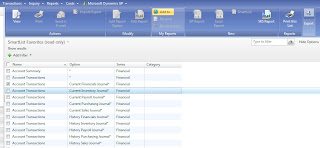
The Navigation List for SmartList Favorites opens. Select the desired Favorite by placing a
checkmark next to it and then click the ‘Add To’ button in the middle of the
List Ribbon.

You’ve now added the Favorite to your list in My Reports.
Simple. But not
necessarily straightforward.
September 11, 2012
Field Service Business Alerts
I had a question come up during a GPUG Lunch 'n Learn session last week on Business Alerts. A user wanted to know how to set an alert using the Field Service tables. I had never tried that before and found that the Field Service tables were not available in the Business Alerts Wizard. Thank goodness for the Dynamics GP Forum and Leslie Vail.
Leslie explained that the tables must be added via Business Alerts Table Maintenance (Administration>>Utilities>>Business Alerts.) See the image below -
Select your Dictionary, Series, and Table(s), click Process and you're good to go. Now the Field Service tables are available in the BA wizard.
Thanks Leslie!
September 4, 2012
My Son's Wedding
I don't typically post personal info on this blog, but I'm so proud of my son Brad and new daughter-in-law Susanne, I couldn't resist. They were married on Sunday, September 2nd, 2012. Here's the handsome couple . . .
Congratulations Brad and Susie!!
August 10, 2012
GPTip42day - Taxable Inventory Items - SOP & POP
This is a topic that bears some reminding now and then. When you set up an item in the Item Card to be Taxable for sales (or purchasing, for that matter), you must assign the 'All Details', or equivalent tax schedule to the item. Not doing so will prevent sales tax from being calculated on the item on a sales or purchase order, even though all other tax-related settings are in place.
* Click on image to enlarge
August 9, 2012
Mark Polino's Dynamic Future - Vote - Multicurrency Cash Flow Forecast
If you work in a multi-currency environment, take a look at this suggestion Mark has made for multicurrency cash flow forecast . . .
Dynamic Future - Vote - Multicurrency Cash Flow Forecast
August 8, 2012
GP 2013 Feature of the Day - Launching SSRS Reports from GP Windows
Now this is just too cool. How great would it be to have all your critical inquiries/reports linked to the windows you do most of your work in? Well, GP 2013 is enabling just that! Click on the image below to view the details of this new feature:
August 7, 2012
Stay Alert with Business Alerts
Next Tuesday, August 14th, I'll be presenting a 1 hour webinar in GPUG's Lunch 'n Learn Series explaining how to setup and use Business Alerts in GP. This is a free, open to all GPUG members presentation. Click here to register for the event. And, if you're not already a GPUG member, you should be! A basic GPUG membership is free also!
Hope to see you there.
Subscribe to:
Posts (Atom)