October 30, 2012

Revenue/Expense Codes in Job Costing

A question came up in my 'Using Job Costing as Project Accounting Lite' presentation at GPUG Summit regarding how to determine what bucket in Job Costing a particular Revenue or Expense transaction appears.  Here's the answer:

Manufacturing>>Job Costing>>Transaction List


1.  Enter your new or existing Job Transaction List
2.  Select the Trx Source
3.  Select the Transactions that you want to assign to specific Revenue/Expense Codes
4.  Choose whether to have the transaction Auto Applied to the job when the transaction is selected for the job.
 
If you need more Revenue/Expense Codes, set these up in Manufacturing>>Job Costing>>Rev/Exp Codes.
 
Using these setups, you can determine which revenue or expense buckets in the Job Maintenance window and Job Costing reports your transactions are coded to.
 
Thanks Debbie Clark at Entertainment One Television in Ontario, CA for the question!


September 23, 2012

GPUG Summit 2012 is Fast Approaching!

This year I'll be presenting 4 sessions:

  • Using Microsoft Dynamics GP Job Costing as 'Project Accounting Lite'
  • 13 MORE Classic, Underused Features in Dynamics GP
  • Word Up! Learn How to Setup and Use Word Templates and Email in Dynamics GP 2010
  • Stay Alert with Business Alerts!


See you in Seattle!


September 20, 2012

How do we add new reports to My Reports?

I had this question from a client today and thought it may good to refresh this topic because the process is not that intuitive.
 
There are two methods, depending on the type of report you want to add.  We’ll look at adding a GP report first.
 
The first step is to open the report window you want to add.  Select the appropriate report and report option and click ‘Modify’.  In the Report Options window, click the ‘My Reports’ button.  This adds the report to your My Reports list on your home page.


Next, let’s look at how you add a SmartList Favorite to your My Reports list.
 
In the Navigation Pane, expand the ‘Report Shortcuts’ folder.  Select ‘SmartList Favorites’.


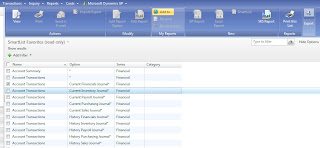
The Navigation List for SmartList Favorites opens.  Select the desired Favorite by placing a checkmark next to it and then click the ‘Add To’ button in the middle of the List Ribbon.
 
 
You’ve now added the Favorite to your list in My Reports.
 
Simple.  But not necessarily straightforward.

September 11, 2012

Field Service Business Alerts

I had a question come up during a GPUG Lunch 'n Learn session last week on Business Alerts.  A user wanted to know how to set an alert using the Field Service tables.  I had never tried that before and found that the Field Service tables were not available in the Business Alerts Wizard.  Thank goodness for the Dynamics GP Forum and Leslie Vail.
 
Leslie explained that the tables must be added via Business Alerts Table Maintenance (Administration>>Utilities>>Business Alerts.)  See the image below -
 
 
Select your Dictionary, Series, and Table(s), click Process and you're good to go.  Now the Field Service tables are available in the BA wizard.
 
Thanks Leslie!

September 4, 2012

My Son's Wedding

I don't typically post personal info on this blog, but I'm so proud of my son Brad and new daughter-in-law Susanne, I couldn't resist.  They were married on Sunday, September 2nd, 2012.  Here's the handsome couple . . .


Congratulations Brad and Susie!!

August 10, 2012

GPTip42day - Taxable Inventory Items - SOP & POP

This is a topic that bears some reminding now and then.  When you set up an item in the Item Card to be Taxable for sales (or purchasing, for that matter), you must assign the 'All Details', or equivalent tax schedule to the item.  Not doing so will prevent sales tax from being calculated on the item on a sales or purchase order, even though all other tax-related settings are in place.

* Click on image to enlarge

August 9, 2012

August 8, 2012

GP 2013 Feature of the Day - Launching SSRS Reports from GP Windows

Now this is just too cool.  How great would it be to have all your critical inquiries/reports linked to the windows you do most of your work in?  Well, GP 2013 is enabling just that!  Click on the image below to view the details of this new feature:


August 7, 2012

Stay Alert with Business Alerts

Next Tuesday, August 14th, I'll be presenting a 1 hour webinar in GPUG's Lunch 'n Learn Series explaining how to setup and use Business Alerts in GP.  This is a free, open to all GPUG members presentation.  Click here to register for the event.  And, if you're not already a GPUG member, you should be!  A basic GPUG membership is free also!


Hope to see you there.

August 1, 2012

Dynamic Future - Vote - Better Control of SmartList Visibility

This week Mark Polino wants more control over SmartList visibility.  If you're in the same camp, and I know I am, click the link below and place your vote.

Dynamic Future - Vote - Better Control of SmartList Visibility

Have a great day!

July 18, 2012

Dynamics GP 2013 Feature of the Day

If you want to keep up with the new features that will roll out in GP 2013 (due out later this year), bookmark this link -


Inside Microsoft Dynamics GP will highlight a new feature each day until we know them all!  Hats off to Pam Misialek and team!

Captain Polino's Dynamic Future - Vote - Multiple Company Support in a Single GP Database

Ever wish you could have multiple companies in a single GP database?  Here's your chance to make it happen -

Adding Multiple Company Support to a Single GP Database

Vote early and vote often!!

July 12, 2012

The 'Microsoft.ACE.OLDB.12.0' provider is not registered on the local machine

If you've ever experienced this error when trying to view the integration logs in Integration Manager, it's because one of two shared components is missing on the workstation -

Resolution 1
Install the Report Viewer Redistributable using the link below:
Resolution 2
Install the 2007 Office System Driver: Data Connectivity Components using the link below:

Try one or both of these resolutions and it should fix the issue for you.  And yes, you need to install the 2007 Office System Driver even though you have Office 2010 installed on the workstation.  Integration Manager looks for the 2007 version.

Alternatively - and I like this solution better - in Integration settings, you can direct the log to save as a local text file instead of in the IM database.  IMHO, viewing the log as a text file makes it easier to analyze.

July 10, 2012

Mark Polino's Dynamic Future - Vote - See Checkbook on Cash Receipts Inquiry

If you'd like to be able to see the Checkbook a Cash Receipt was posted to from within Cash Receipts Inquiry, vote for this suggestion today . . .

Dynamic Future - Vote - See Checkbook on Cash Receipts Inquiry

Thanks Mark, for another great suggestion!